Align once, and every print lands right
Almost no printer prints at exactly 100 %: it shrinks the page by a percent or two to fit its printable area and places it with a small offset – and this differs from printer to printer. On a label sheet, the print then slides across the die-cut.
Print alignment measures that once, with a test sheet. After that, Vinylist corrects every print automatically, and your labels come out at true size.
-
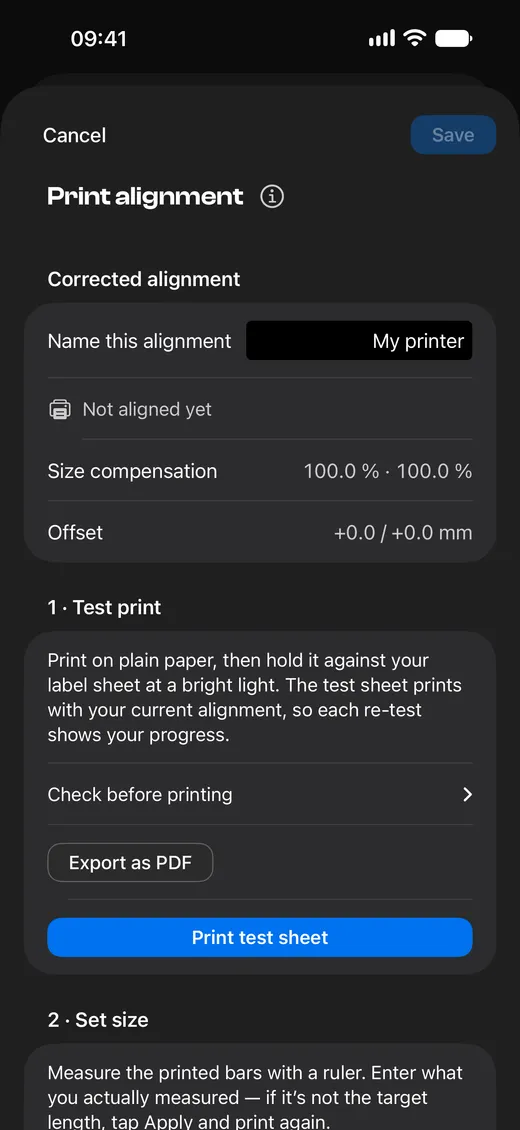
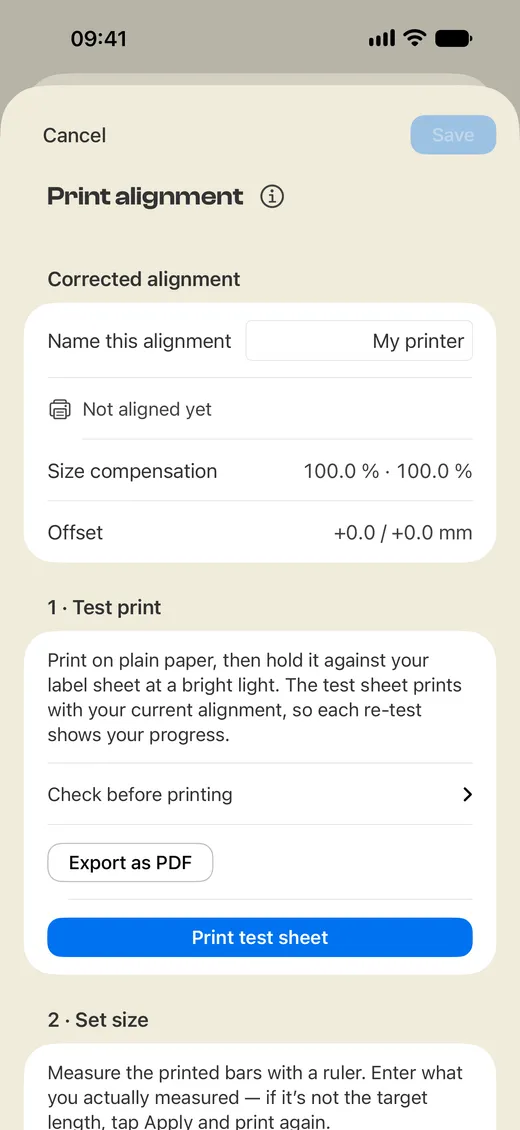
Print the test sheet
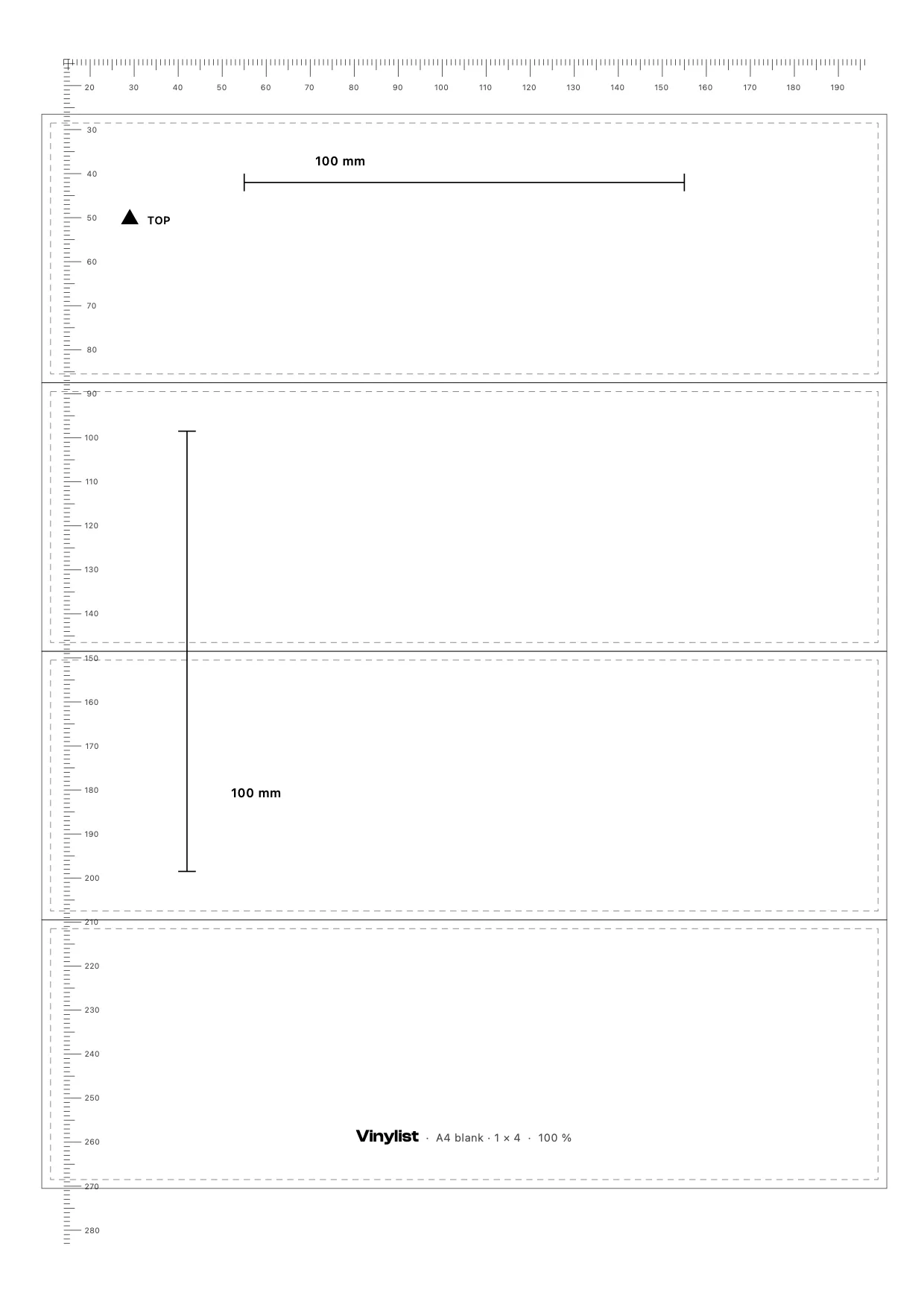
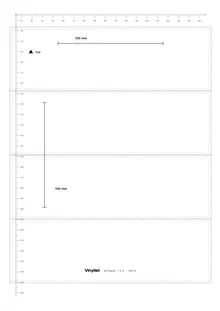
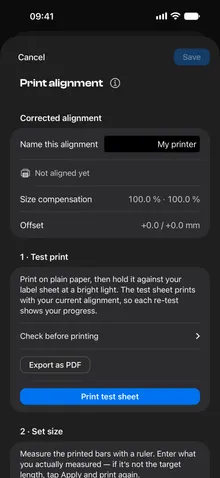
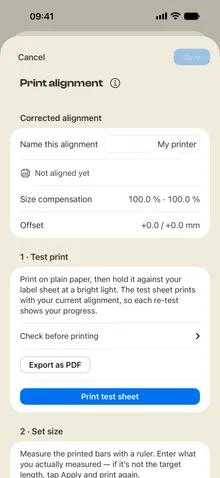
Print the test sheet on plain paper, at 100 % in the print dialog – not “Scale to fit”. It carries rulers along its edges, two measuring bars with their target length, and the frames of your label sheet.
-
Measure the size
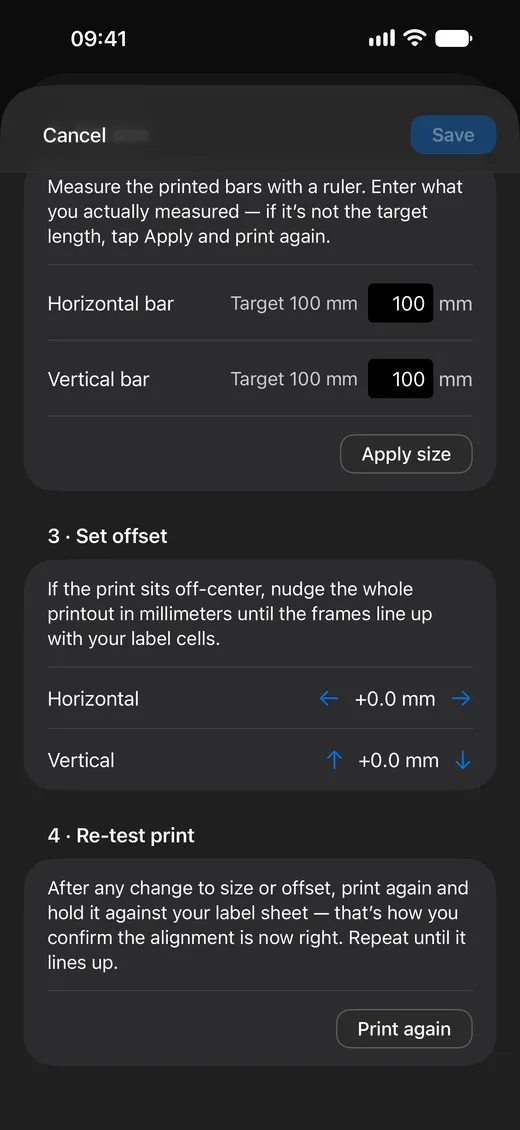
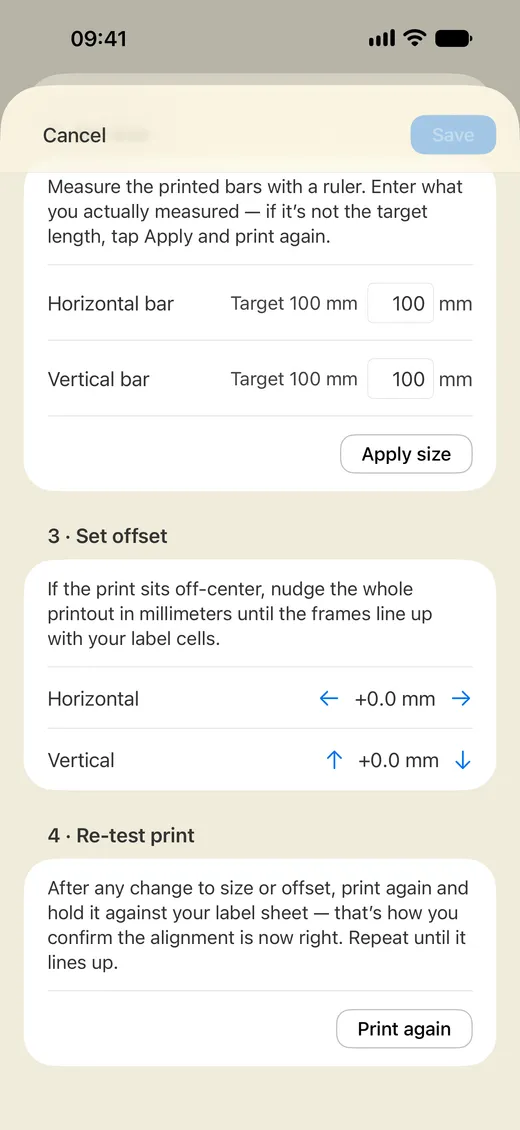
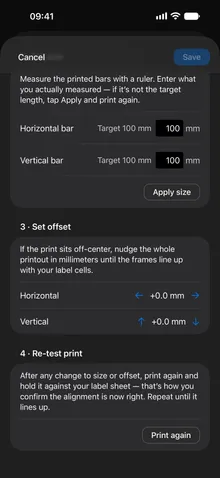
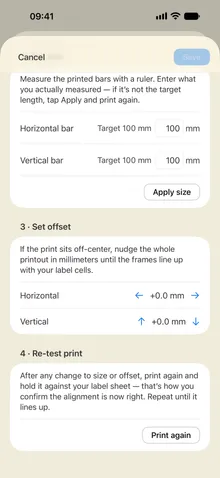
Measure both bars with a ruler and enter what you actually measured. If it is off target, tap “Apply size” – Vinylist compensates for your printer's shrinking.
-
Set the offset
Hold the printout against your label sheet at a bright light. If the frames miss the die-cut cells, nudge the whole printout in millimeters until they line up.
-
Check once more – done
Print the test sheet again: it already comes out with your alignment, so you see straight away whether everything lines up. Then save – from now on every print lands right.
Good to know
- An alignment belongs to one printer. If you have several, align each one once and pick the right one when you print – through iCloud they are on all your devices.
- Only the printout is adjusted. Your label design stays exactly as it is.
- You'll find it when printing, under “Adjust print alignment…”.